Android Phone
WiFi Connection Guide
iPhone
WiFi Connection Guide

Step-by-step guide to connect your smartphone to our secure network
New FARs/Consultants: Your username and password will be sent to you via SMS when you join the company.
Forgot password: Contact our IT department to reset your password.
Follow these steps to connect your Android phone to FAPL-Secure-FAR WiFi network:
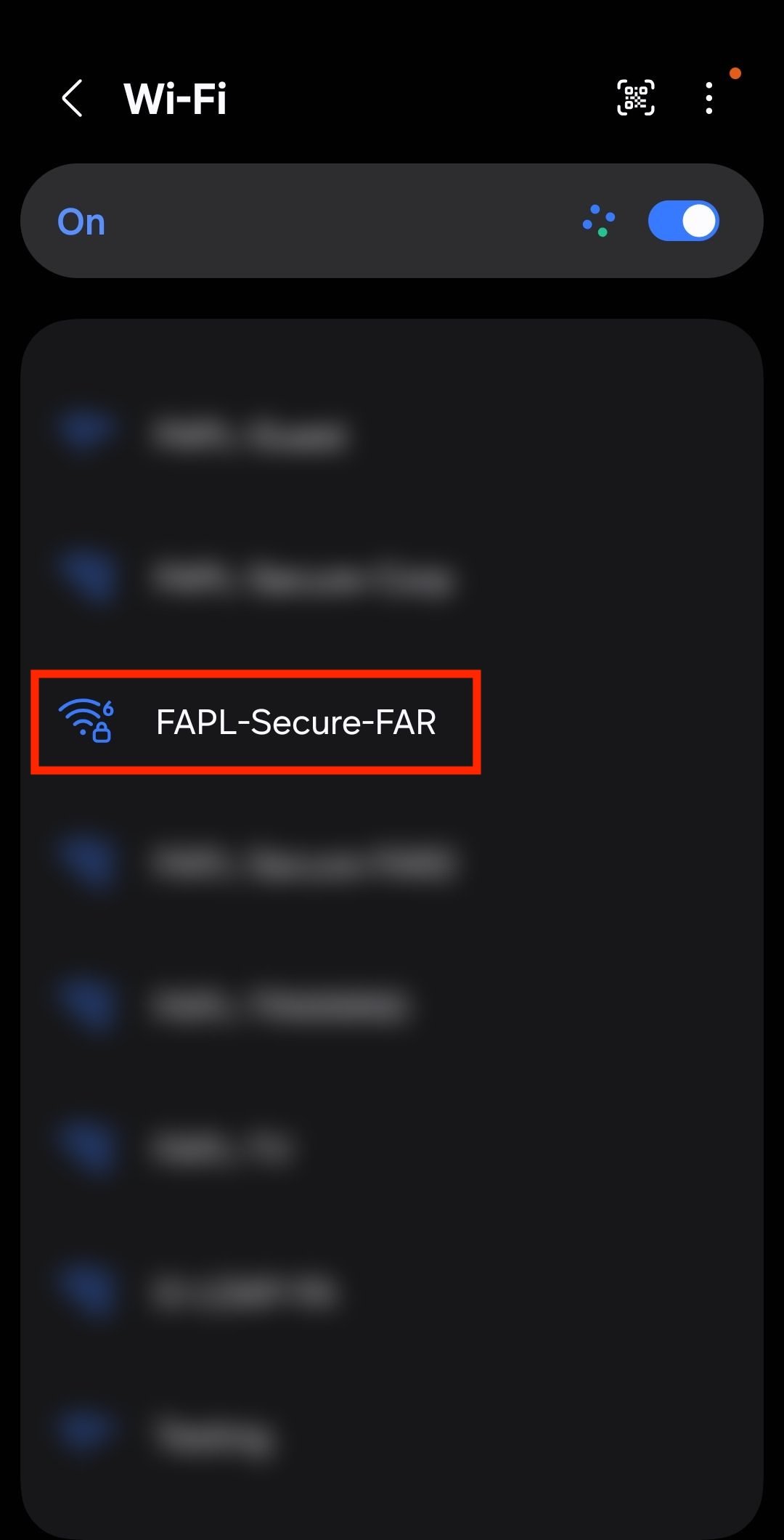
Go to Settings → WiFi and make sure WiFi is turned on. You'll see a list of available networks.
Find and tap on "FAPL-Secure-FAR" from the list of available networks.
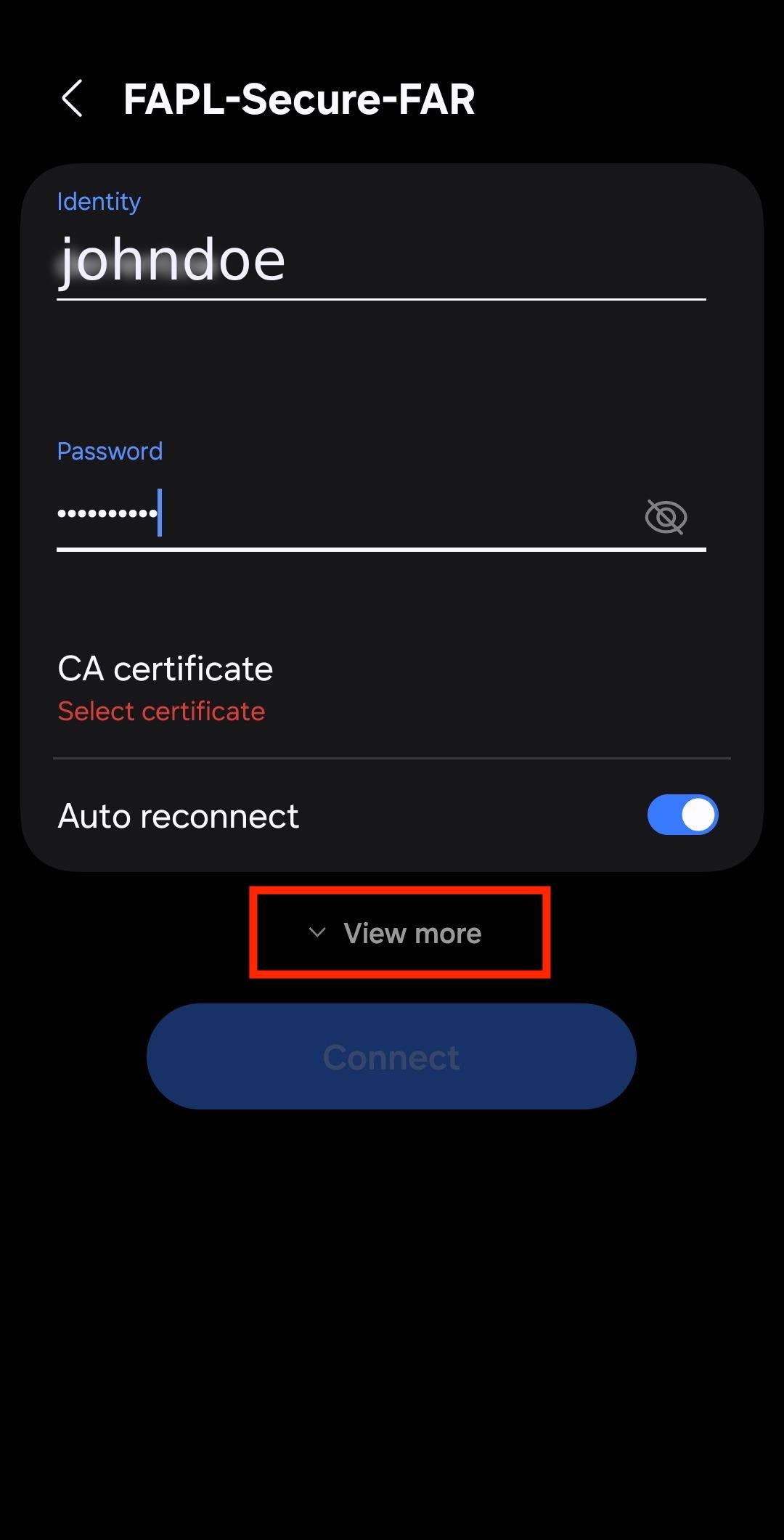
A configuration screen will appear. Fill in your credentials:
Find and tap on "View more" to see additional configuration options.
A configuration screen will appear. Fill in your credentials:
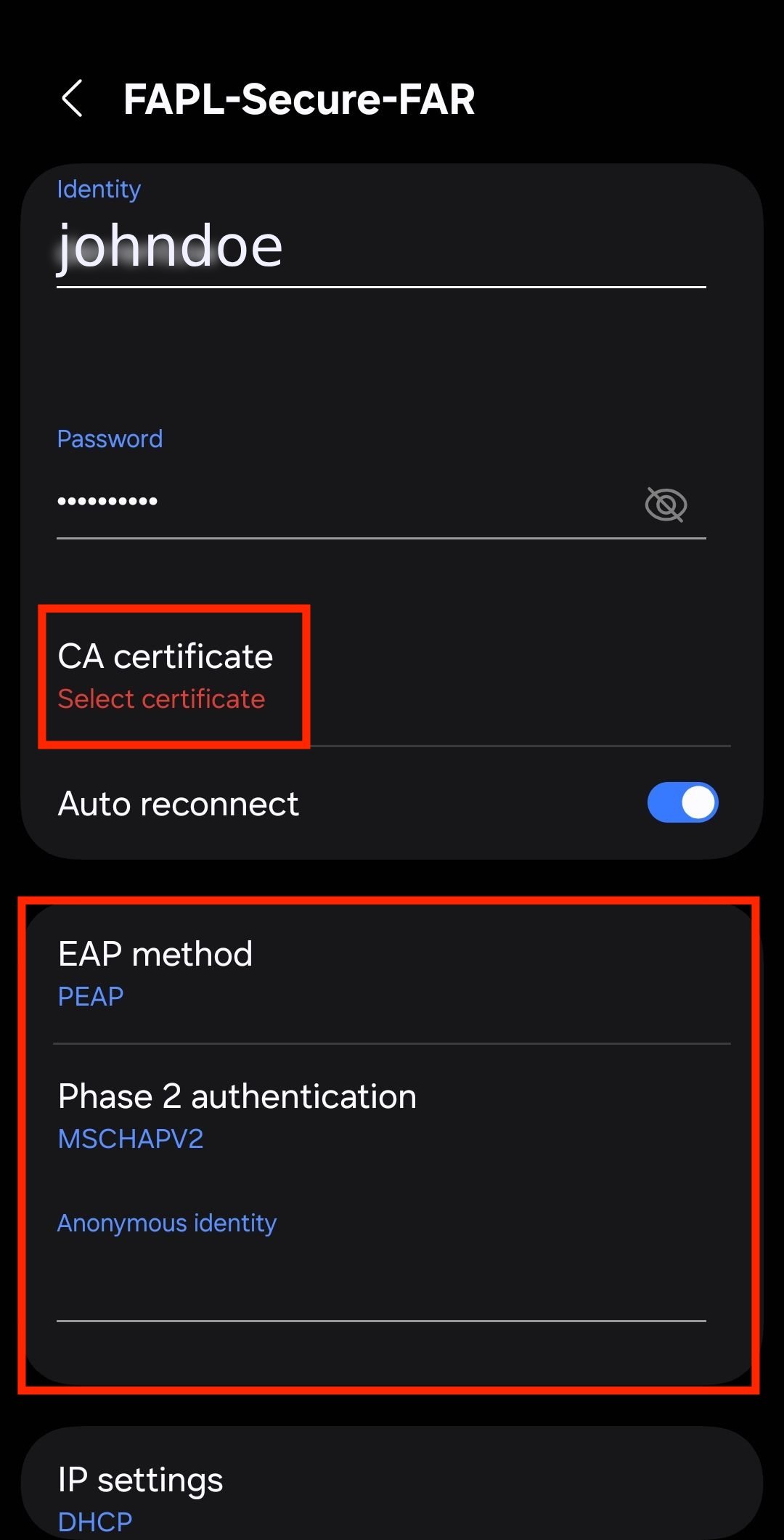
Tap on "CA certificate" and select "Don't validate" from the dropdown menu.
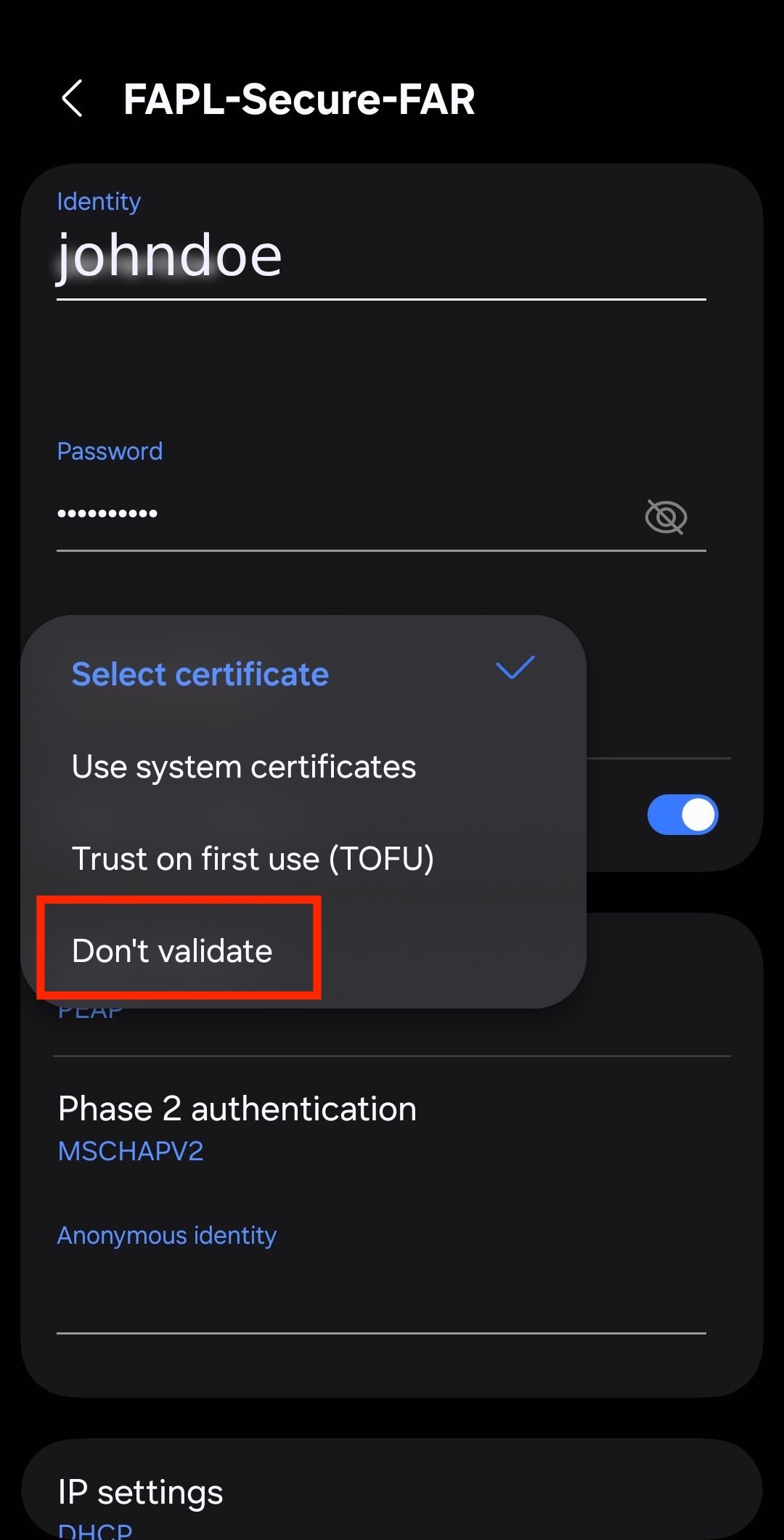
Selecting "Don't validate" means your connection won't be fully encrypted. This is the required setting for our network, but be aware that your connection may not be completely private.
Tap "Connect" to join the network. Your phone will attempt to connect using the credentials you provided.
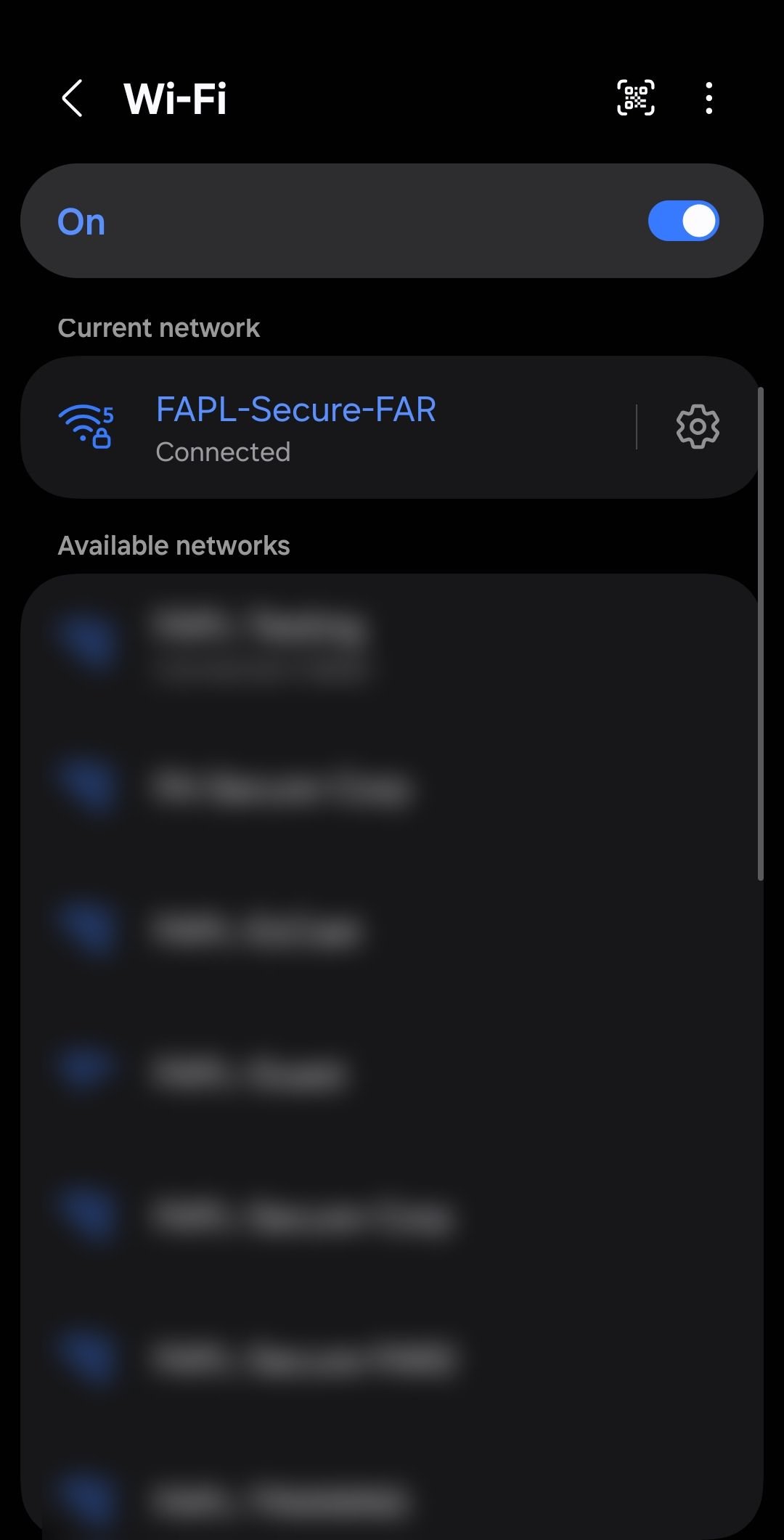
Follow these steps to connect your iPhone to FAPL-Secure-FAR WiFi network:
Go to Settings → Wi-Fi and make sure Wi-Fi is turned on. You'll see a list of available networks including "FAPL-Secure-FAR".
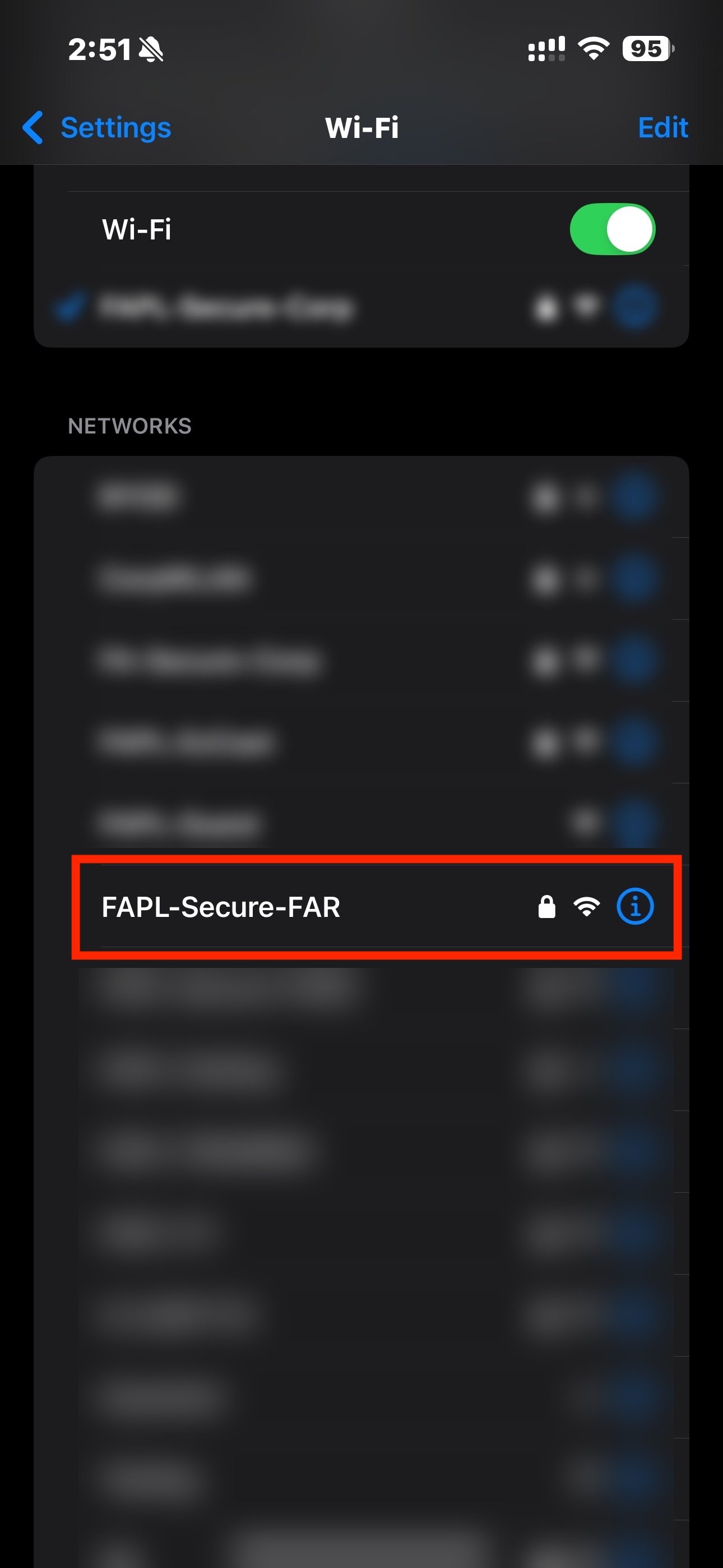
Tap on "FAPL-Secure-FAR" from the list of available networks.
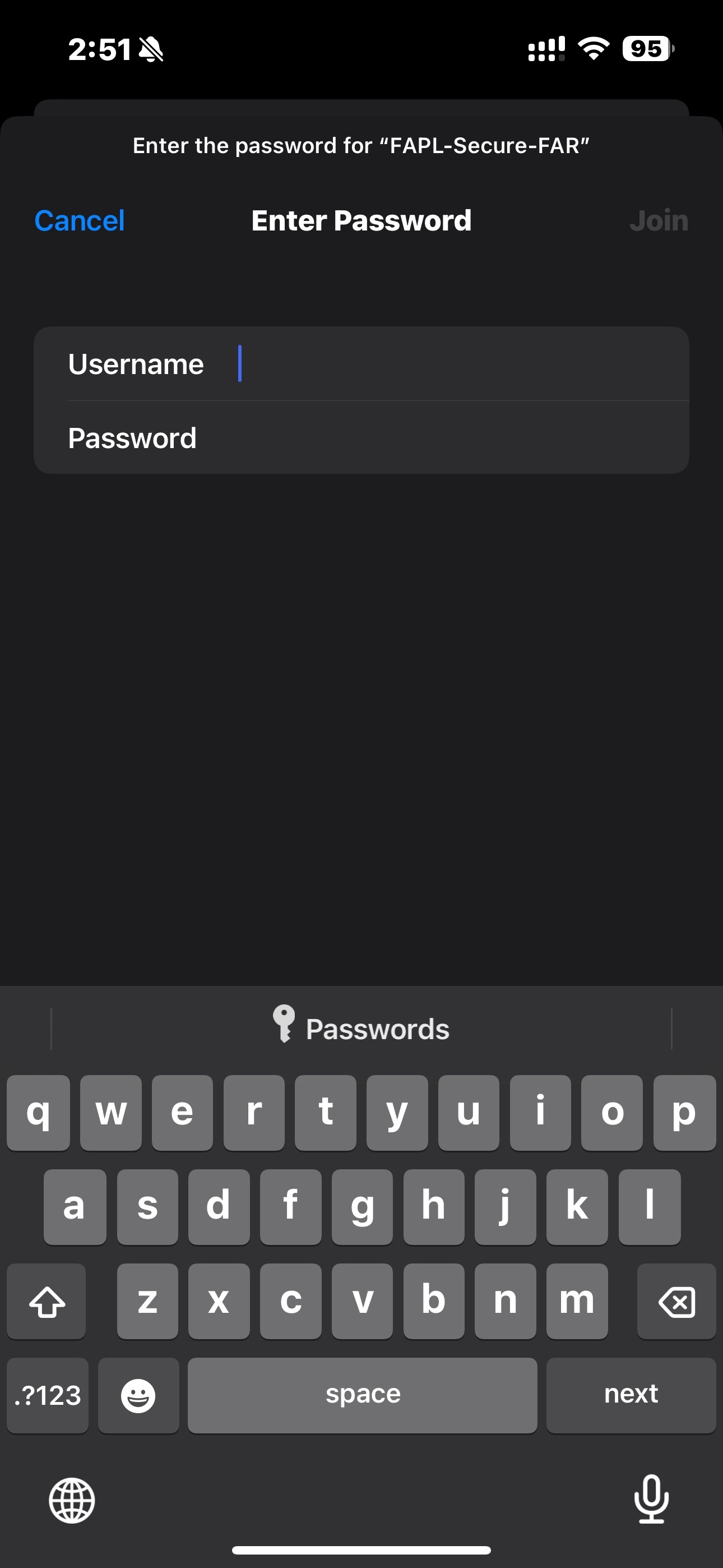
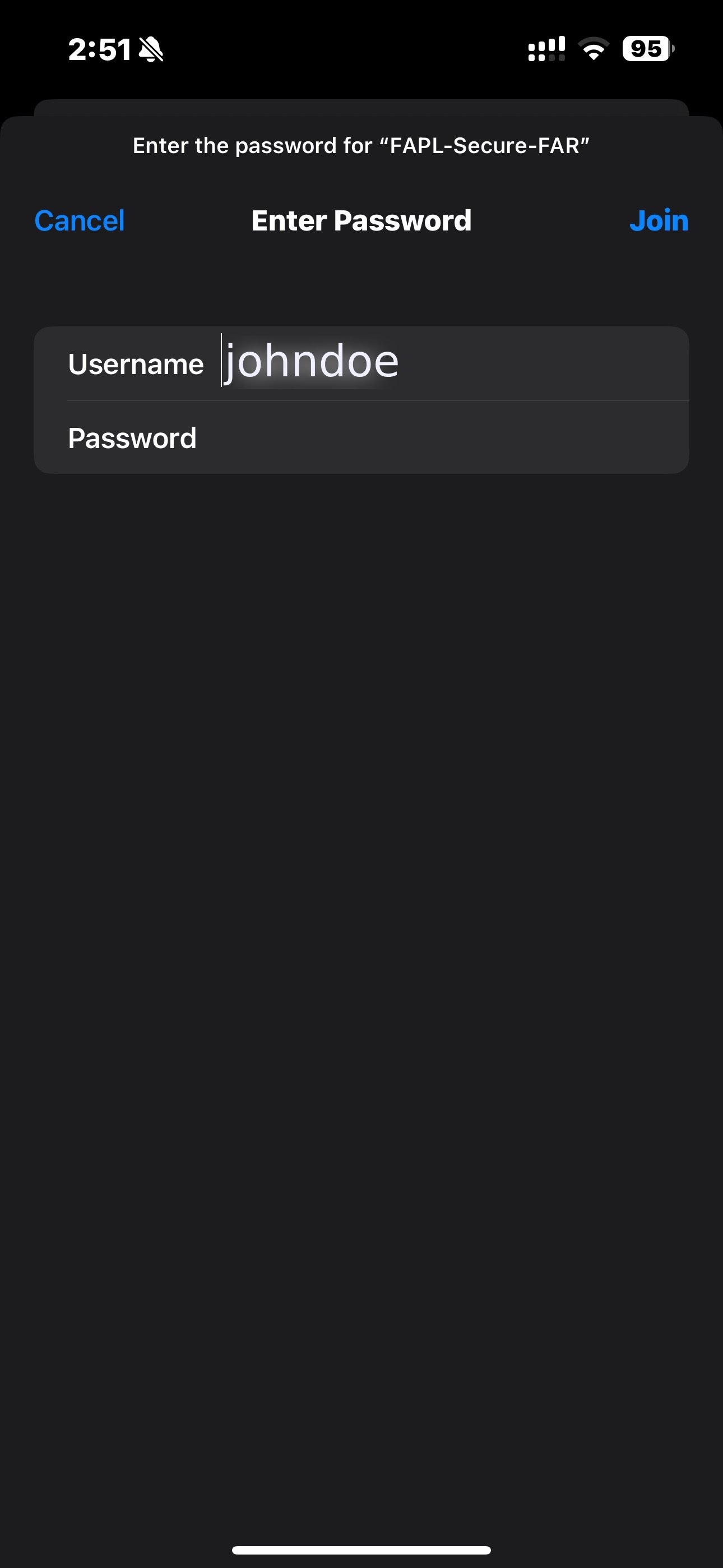
An "Enter Password" dialog will appear. Fill in your credentials:
Tap "Join" when done.
A certificate dialog will appear for "wifi.fa.com.sg". Even though it shows "Not Trusted", tap "Trust" to proceed with the connection.
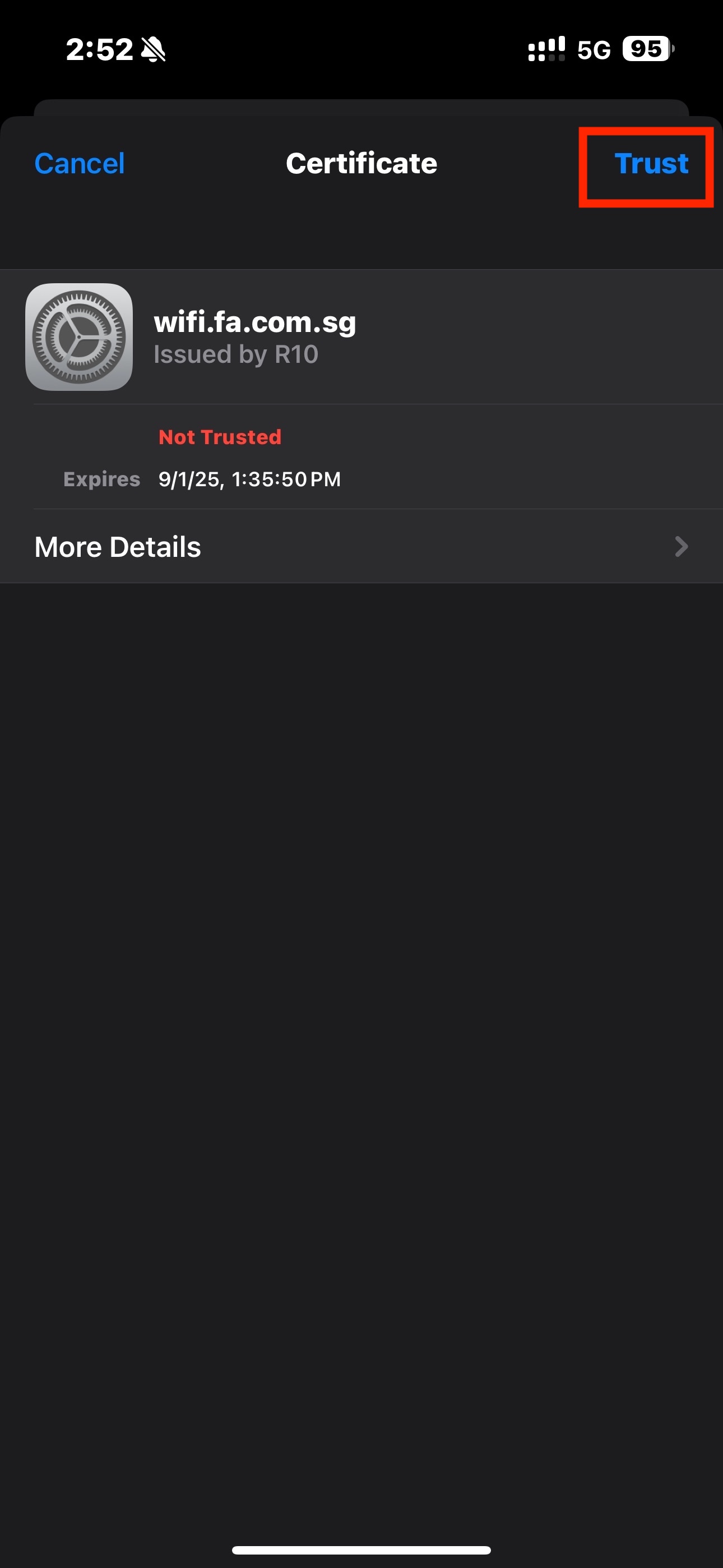
The certificate shows as "Not Trusted" - this is expected for our network configuration. Tap "Trust" to continue connecting.
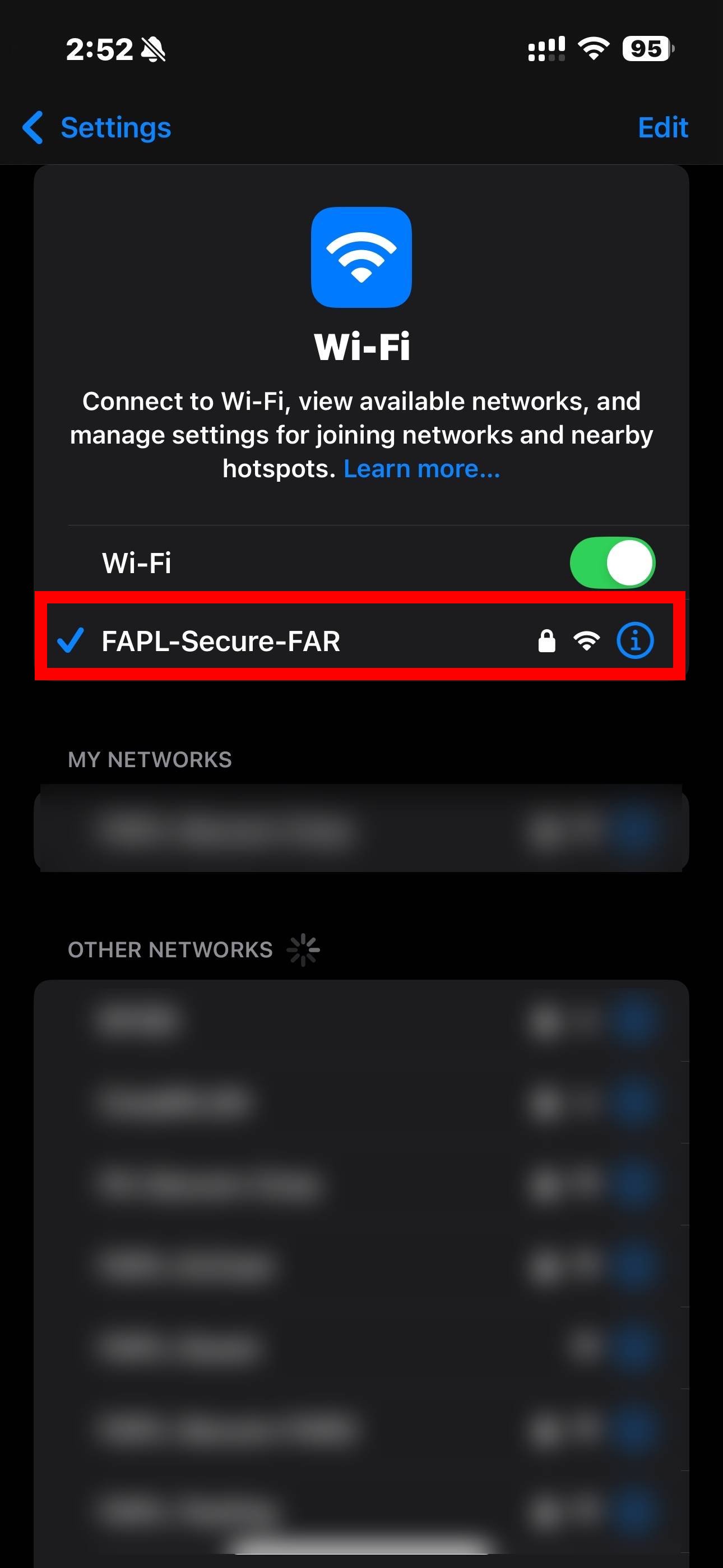
Once connected, you'll see "FAPL-Secure-FAR" with a checkmark (✓) and it will appear under "MY NETWORKS" section, indicating a successful connection.